
Intro
Hey folks - long time no see! :)
We haven’t been inactive… we’ve been deep in research mode, thinking what would be genuinely useful to share with our true followers. And now we’re back -blog sessions are alive again.
Today we’re back with a real "hot topic" for Poland: KSeF.
The best news: it’s officially available in Odoo Enterprise for versions 18 and 19.
At the end of January 2026, the official KSeF integration was deployed to Odoo for versions 18.0 and 19.0. It appeared first in Odoo Community and then reached Odoo Enterprise shortly after via updates.
Right now, the official scope is focused on the most important part: sending sales invoices to KSeF and tracking the flow (status checks + UPO download).
Downloading purchase invoices into Odoo is still being worked on and is not consistently available in the stable Odoo 18 Runbot builds yet.
Implementation in earlier versions would require a custom module.
In this post, we’ll show you how to test the current KSeF "Send" flow in Odoo.
Important note:
- For Odoo 18: we will use Odoo Runbot (Enterprise) to launch a disposable sandbox without installing anything locally. Runbot environments can be unstable or slow sometimes, so refresh and try another 18.0 "Enterprise Run" if needed.
- For Odoo 19: you can use demo.odoo.com directly (it opens the latest stable demo version), which is the easiest way to preview the UI on the newest release.
What you’ll achieve in this guide
By the end, you will be able to:
- Start an Odoo 18 Enterprise sandbox in Runbot (or preview in Odoo 19 demo)
- Ensure Polish localization modules are installed (if needed)
- Generate KSeF test credentials (certificate + key)
- Configure KSeF in Odoo (certificate + Accounting setting)
- Send a sales invoice to the KSeF test environment and track the status/Download UPO
How to test KSeF in Odoo (step-by-step)
- Open Runbot and start Odoo 18 Enterprise:
- Open: https://runbot.odoo.com/
- Find the 18.0 branch (main 18.0 line)
- Start an Enterprise Run (choose a runnable one )
1.0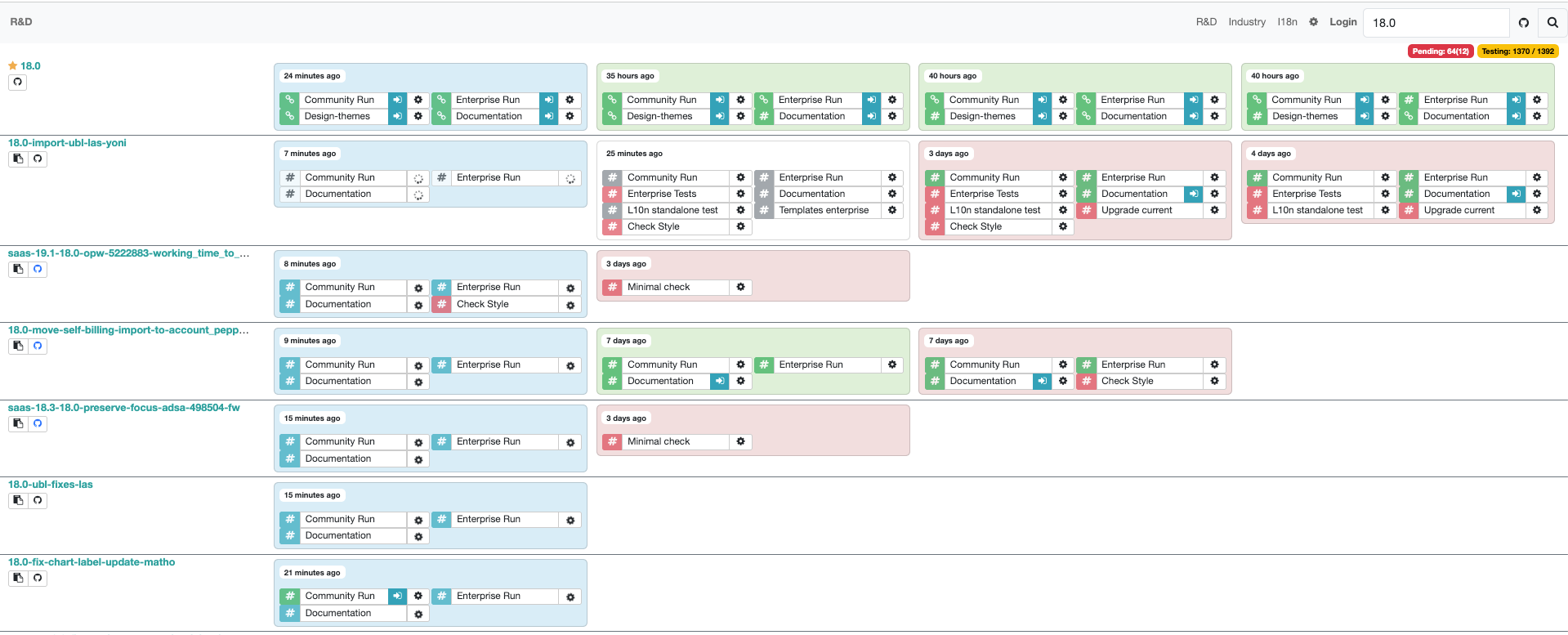
- Sign in:
- After the sandbox starts, you will usually land on the website homepage.
- Click Sign in (top-right)
- Username/Email:
admin - Password:
admin - Click Log in
2.0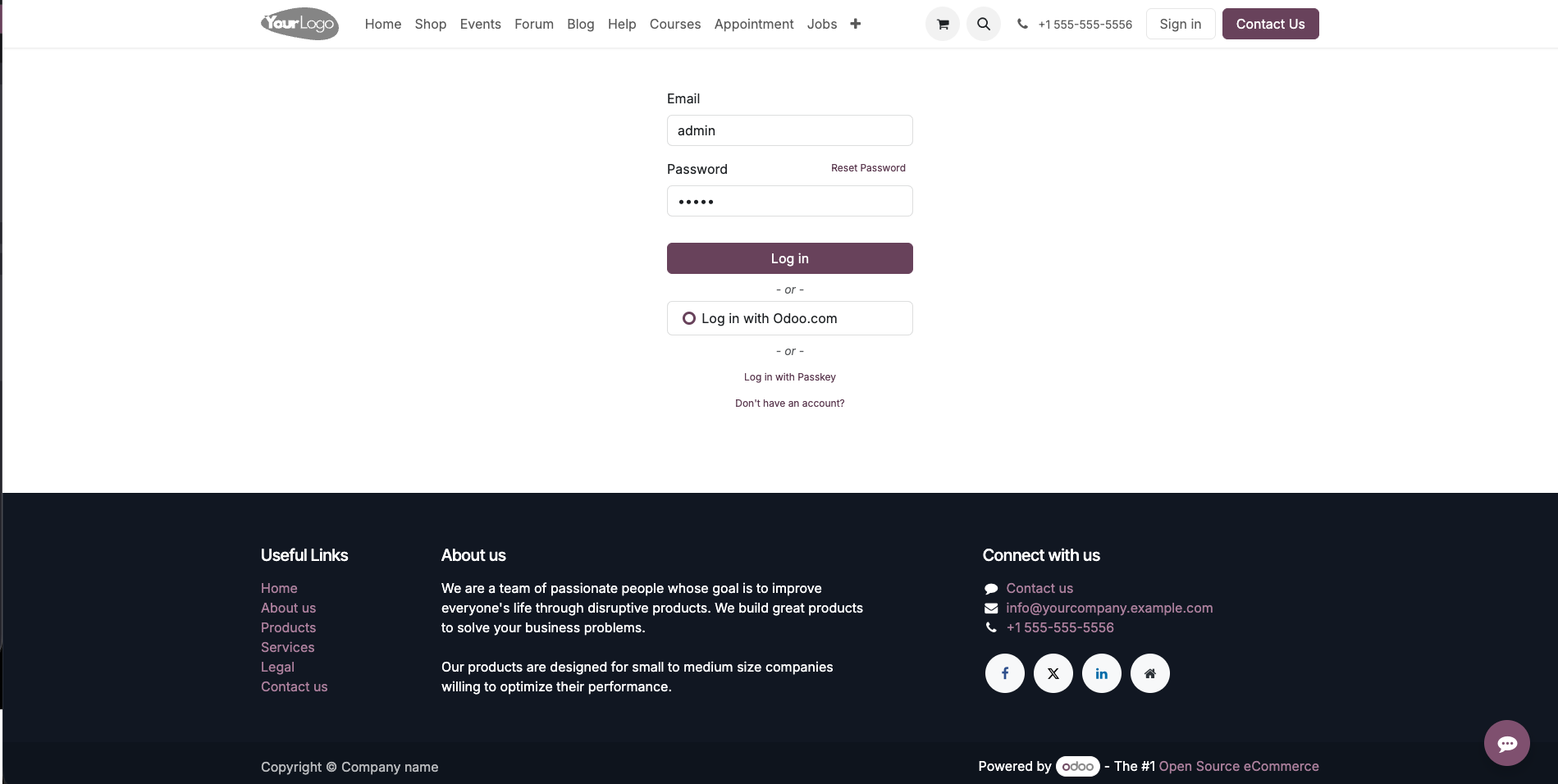
- Set up the Polish company (My Polish Company)
After logging in, make sure you are working in the Polish company context. - Best case:
- "PL Company" appears automatically in the company selector (top bar).
- If it doesn’t appear immediately, wait 1–2 minutes and refresh the page a couple of times.
- If it still doesn’t appear, don’t hesitate to create it manually :)
- Go to Settings -> Users & Companies -> Companies -> New
- Company Name: My Polish Company
- Country: Poland
- VAT/NIP: use a PL-prefixed value (example: PL1234567883). Later, you will use it to log in to the KSeF Test environment.
- Currency: PLN (if not set automatically)
3.0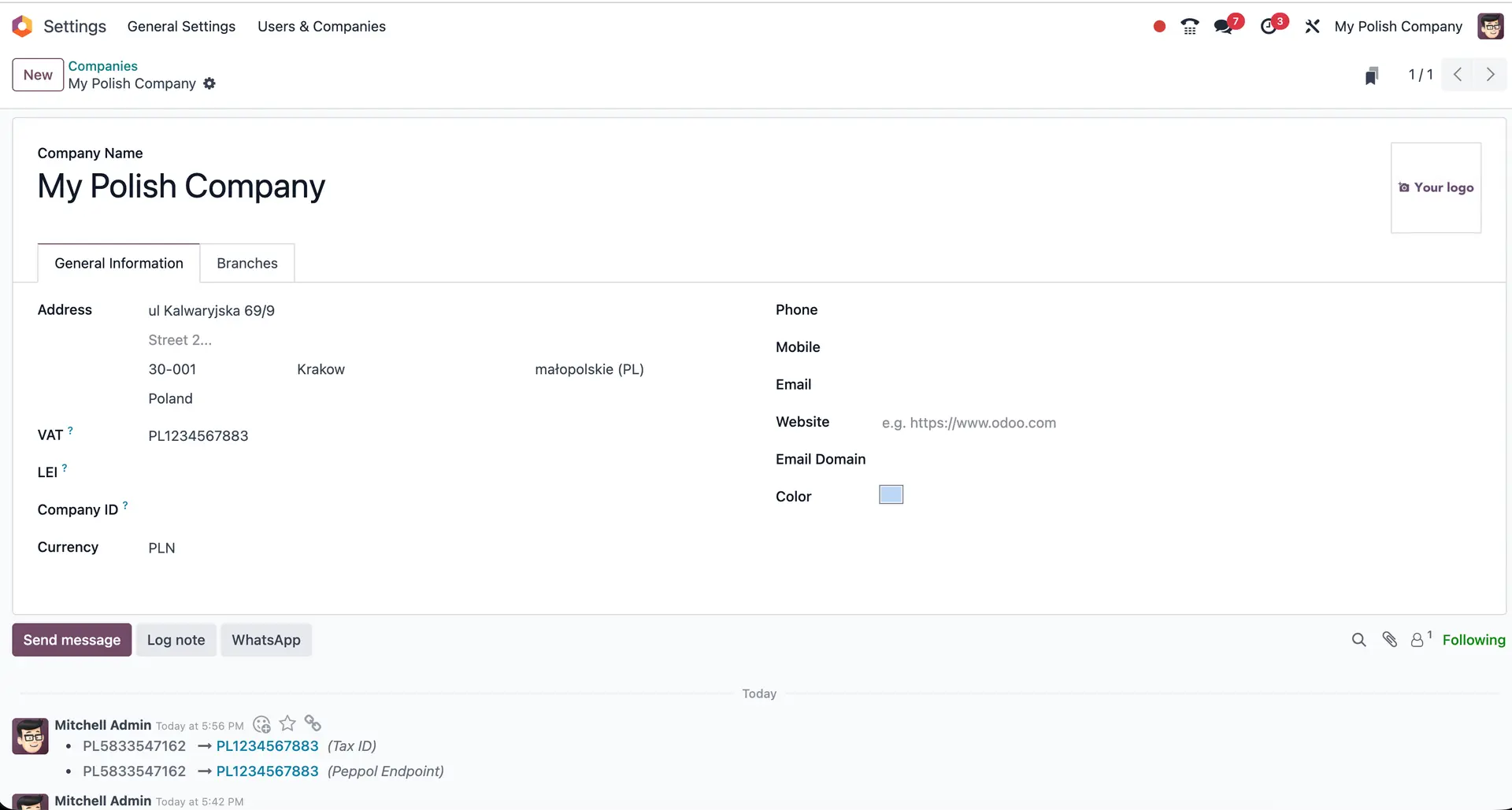
- Save, then switch to "My Polish Company" from the company selector.
3.0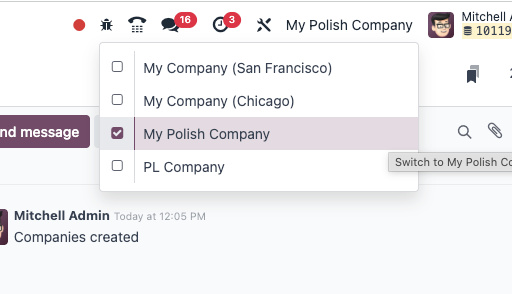
- Sometimes the PL Company might appear right after you created "My Polish Company" ;), but keep working in the one you created earlier if you have already started this process.
- Verify Polish Localization (install modules only if missing)
- Go to: Settings -> Accounting -> Fiscal Localization, and you should see that it's already set to Poland.
4.0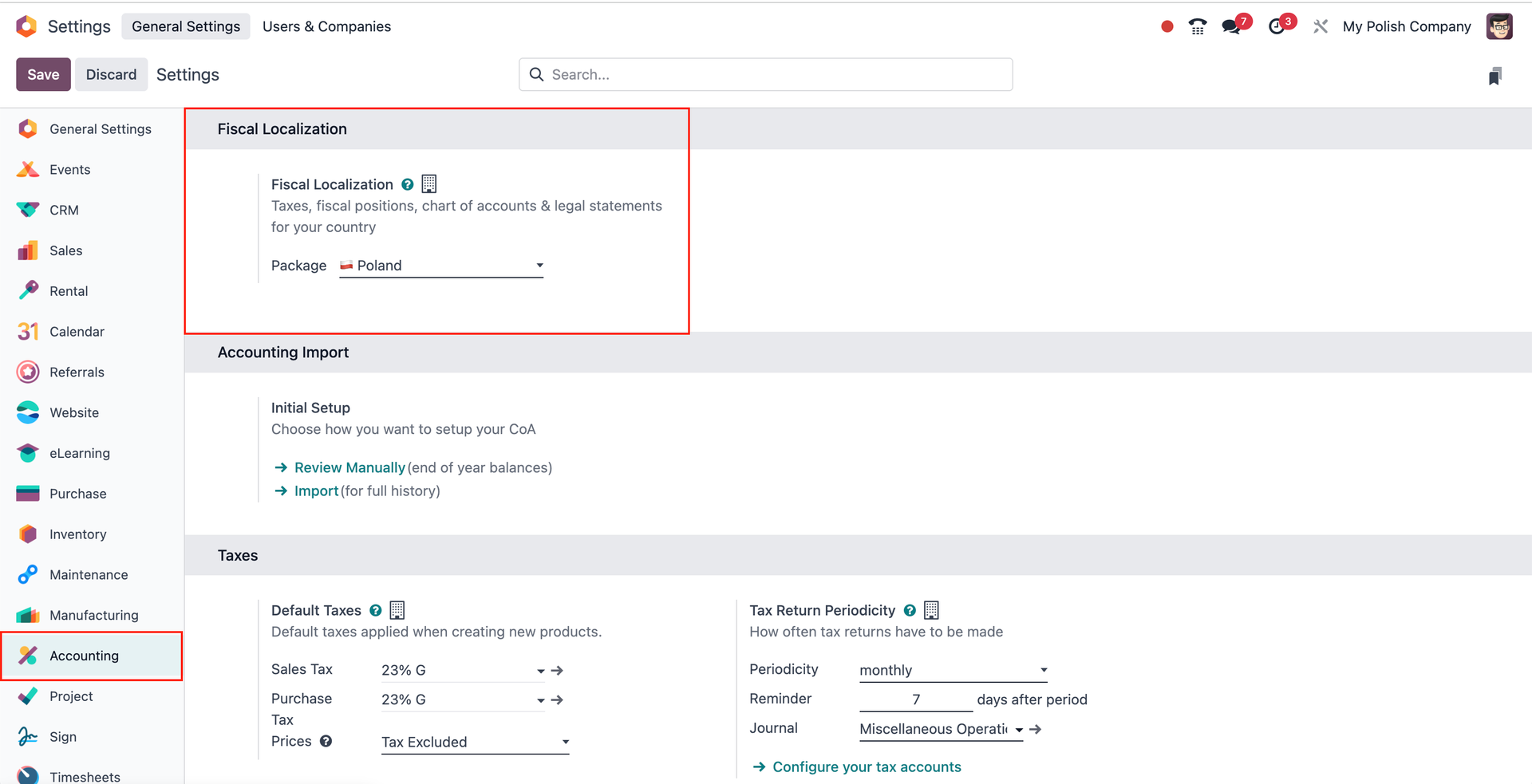
- If you don’t see Polish localization / KSeF settings later, install these modules first:
- Polish Localization (
l10n_pl) - Polish EDI (
l10n_pl_edi)
- Polish Localization (
- Path:
- Apps -> Search module -> Install
Tip: Remove default Apps filters if you can’t find technical module names.
- Apps -> Search module -> Install
- Go to: Settings -> Accounting -> Fiscal Localization, and you should see that it's already set to Poland.
- Get KSeF test certificate (official sandbox)
- Open the official KSeF test environment: Login using your Tax ID/NIP.
The one you already set in Odoo, but this time without the PL index.
https://ap-test.ksef.mf.gov.pl/web/
5.0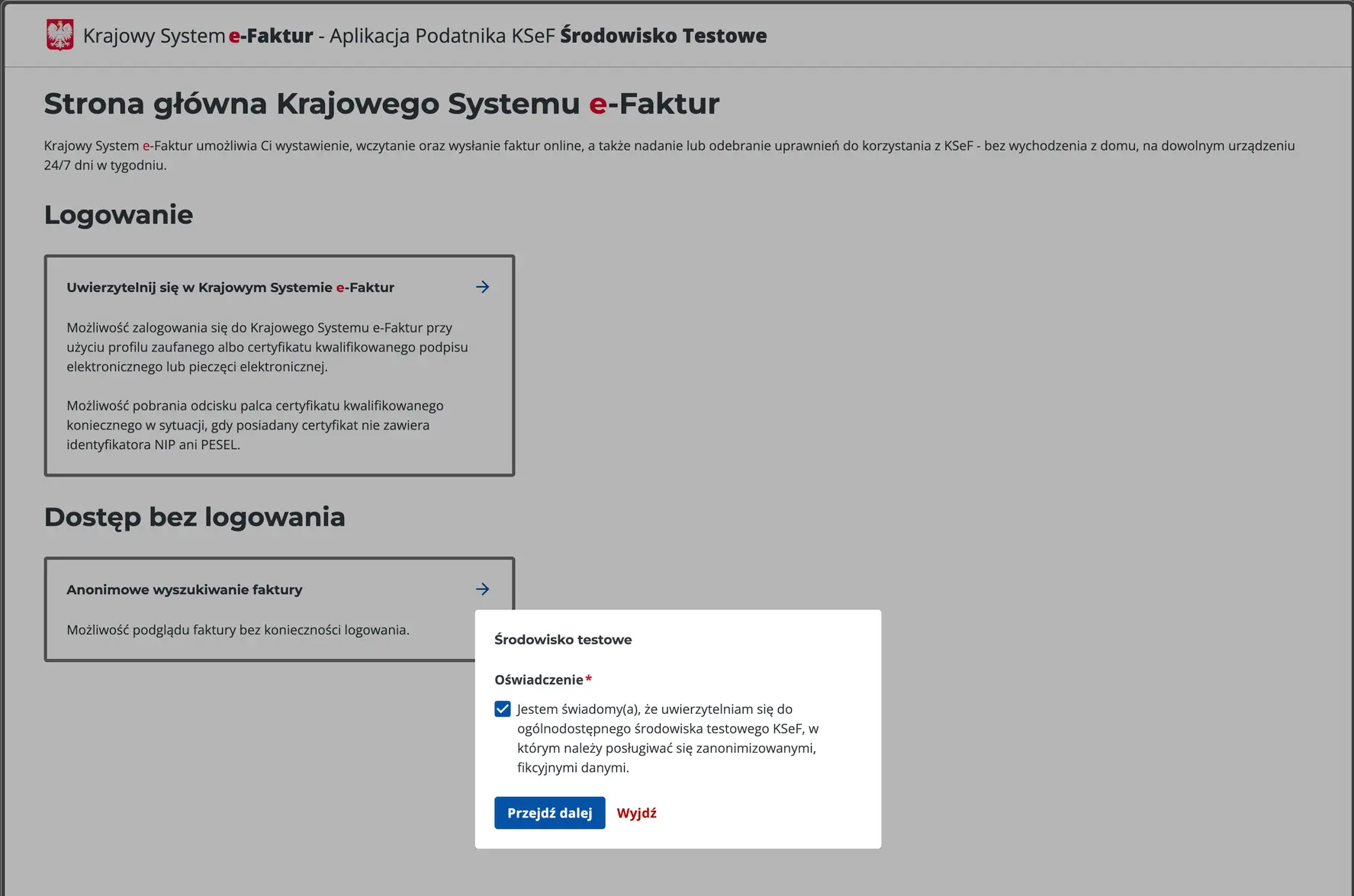
5.1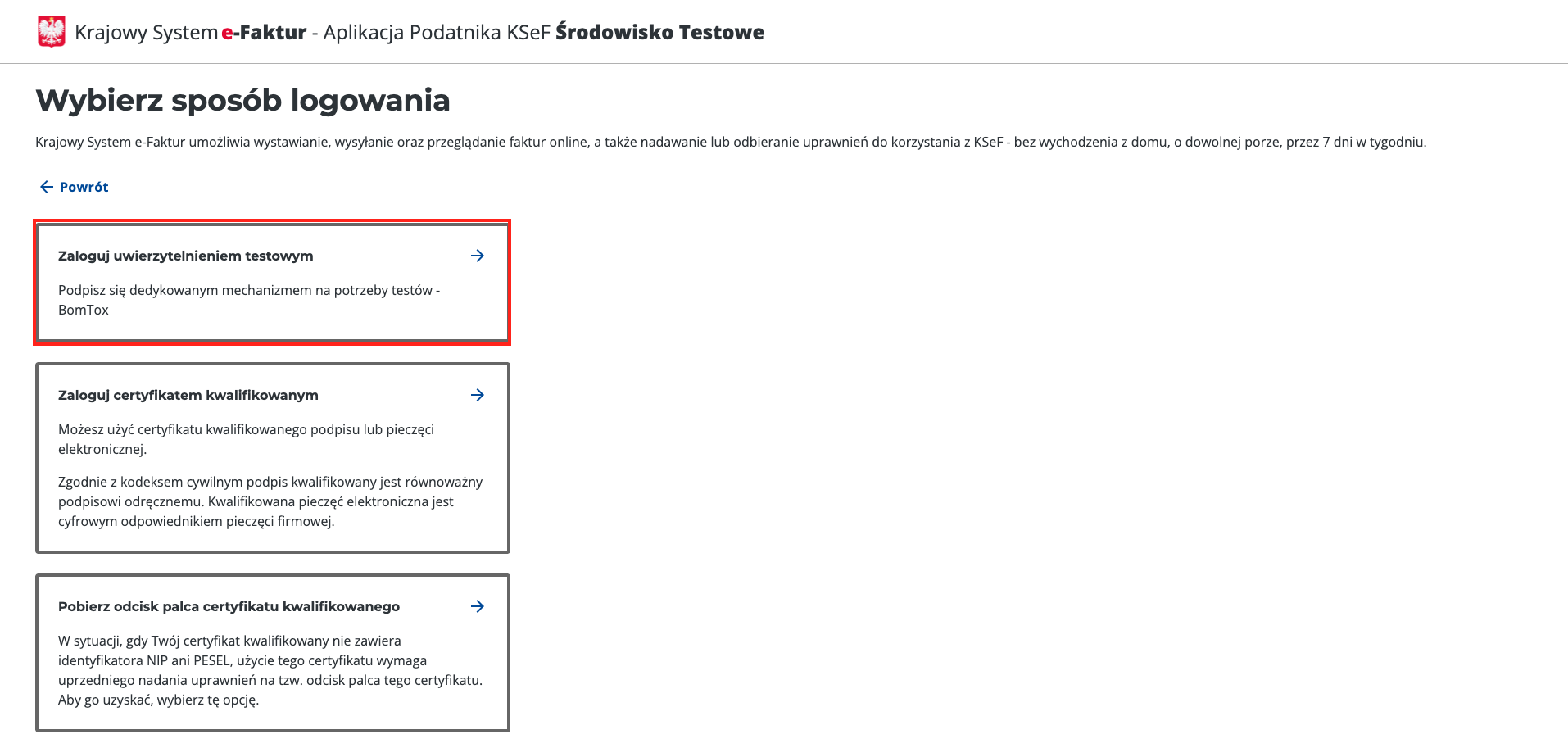
5.2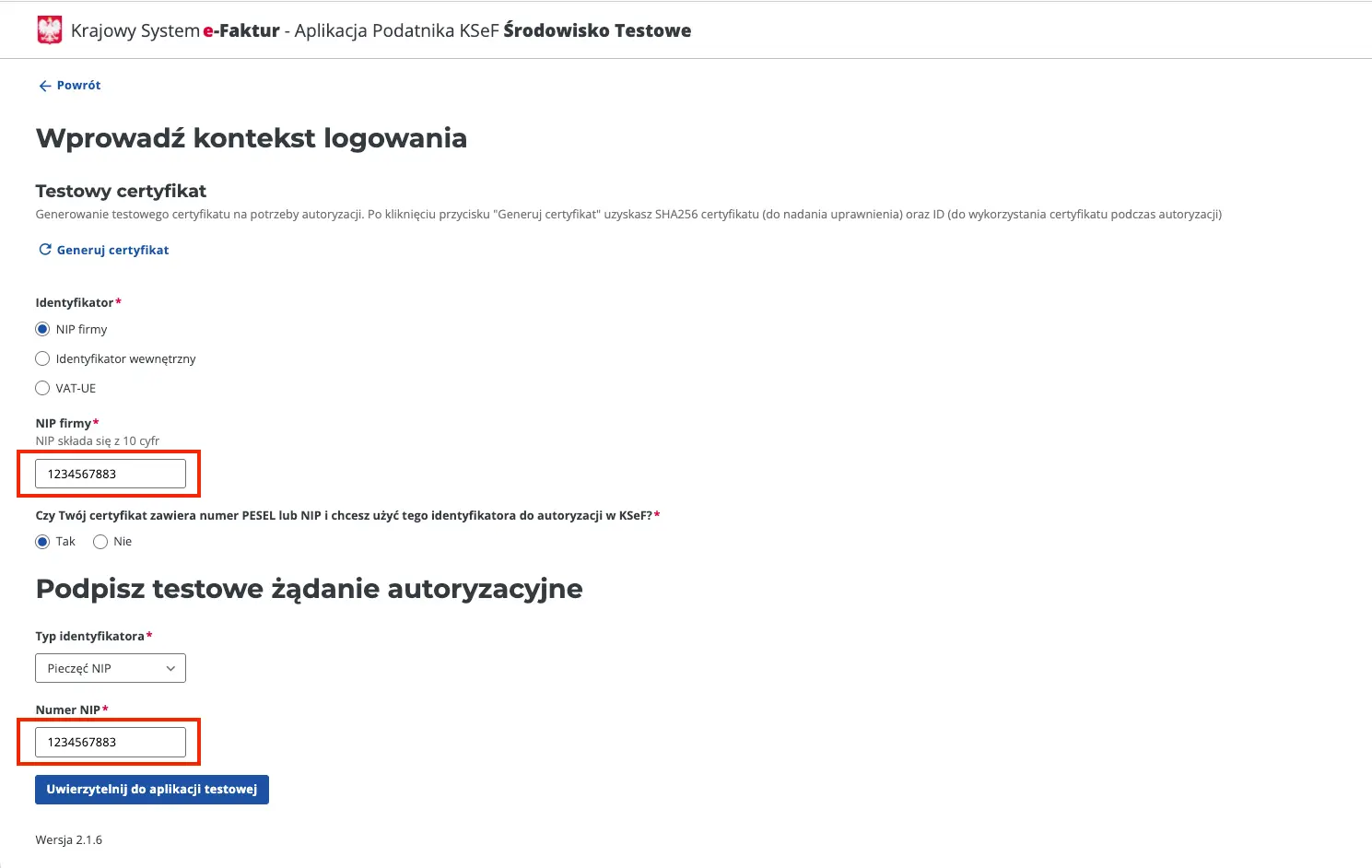
- Navigate to Certificates > Request a Certificate (Certyfikaty > Wnioskuj o certyfikat).
- Certificate name: free to choose
- Password: 15 characters
- After clicking "Generate"(Generuj), a private key will be generated and downloaded, named the same as the certificate. (Don't share it with anyone)
5.3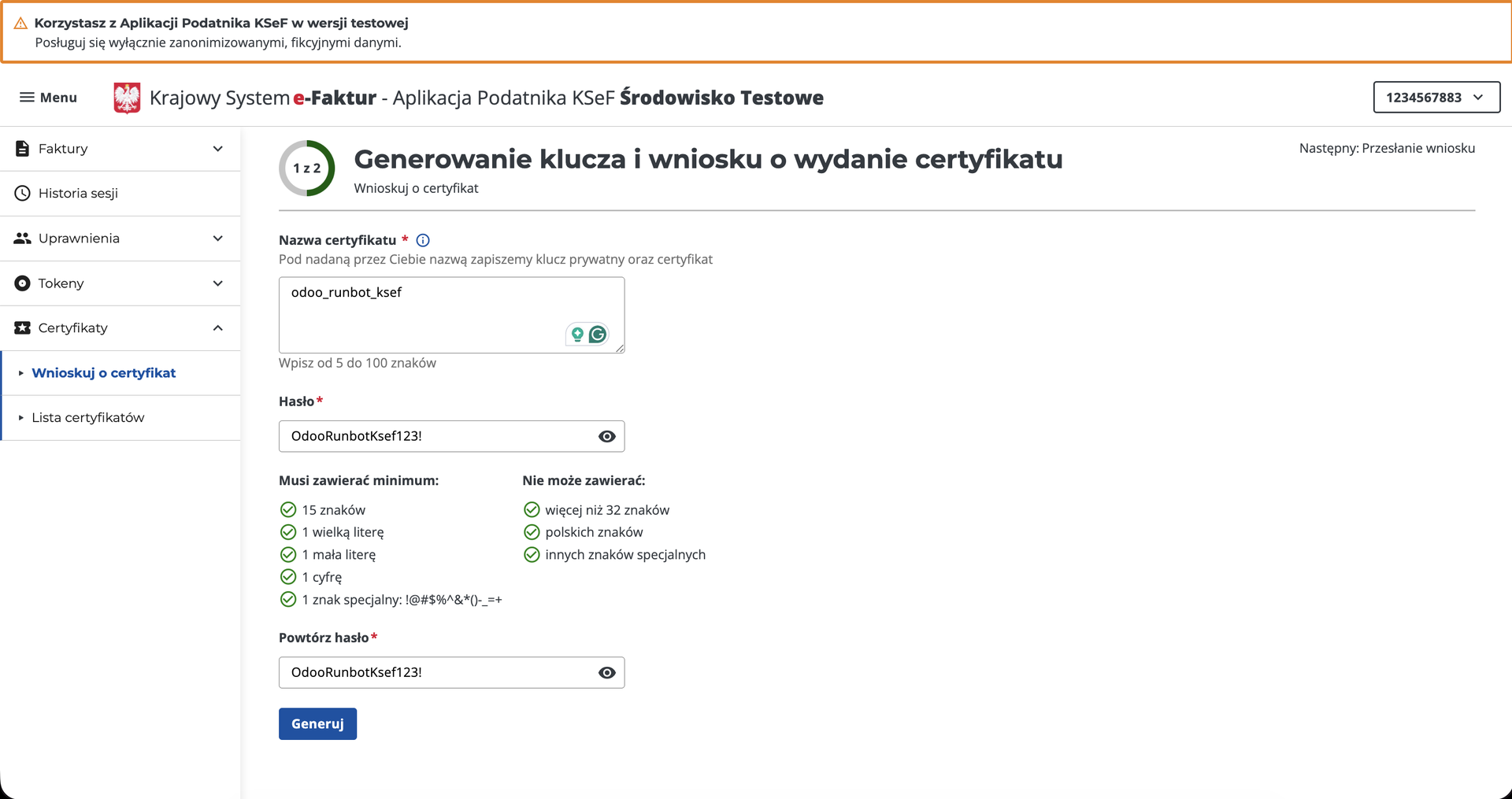
- Click "Send request for certificate issuance" (Wyślij wniosek o wydanie certyfikatu). Refresh, and the certificate file will be available for download.
5.4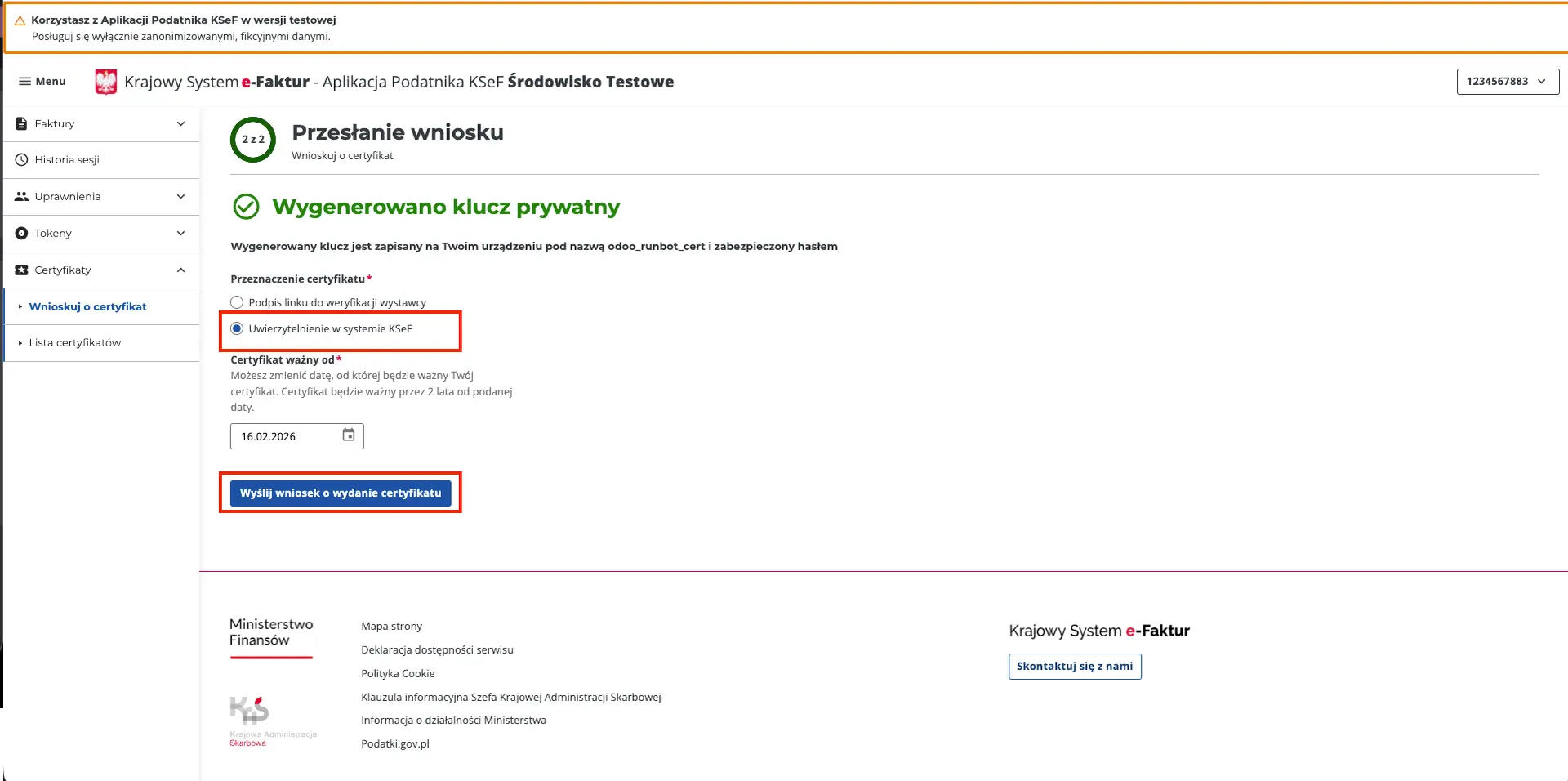
5.5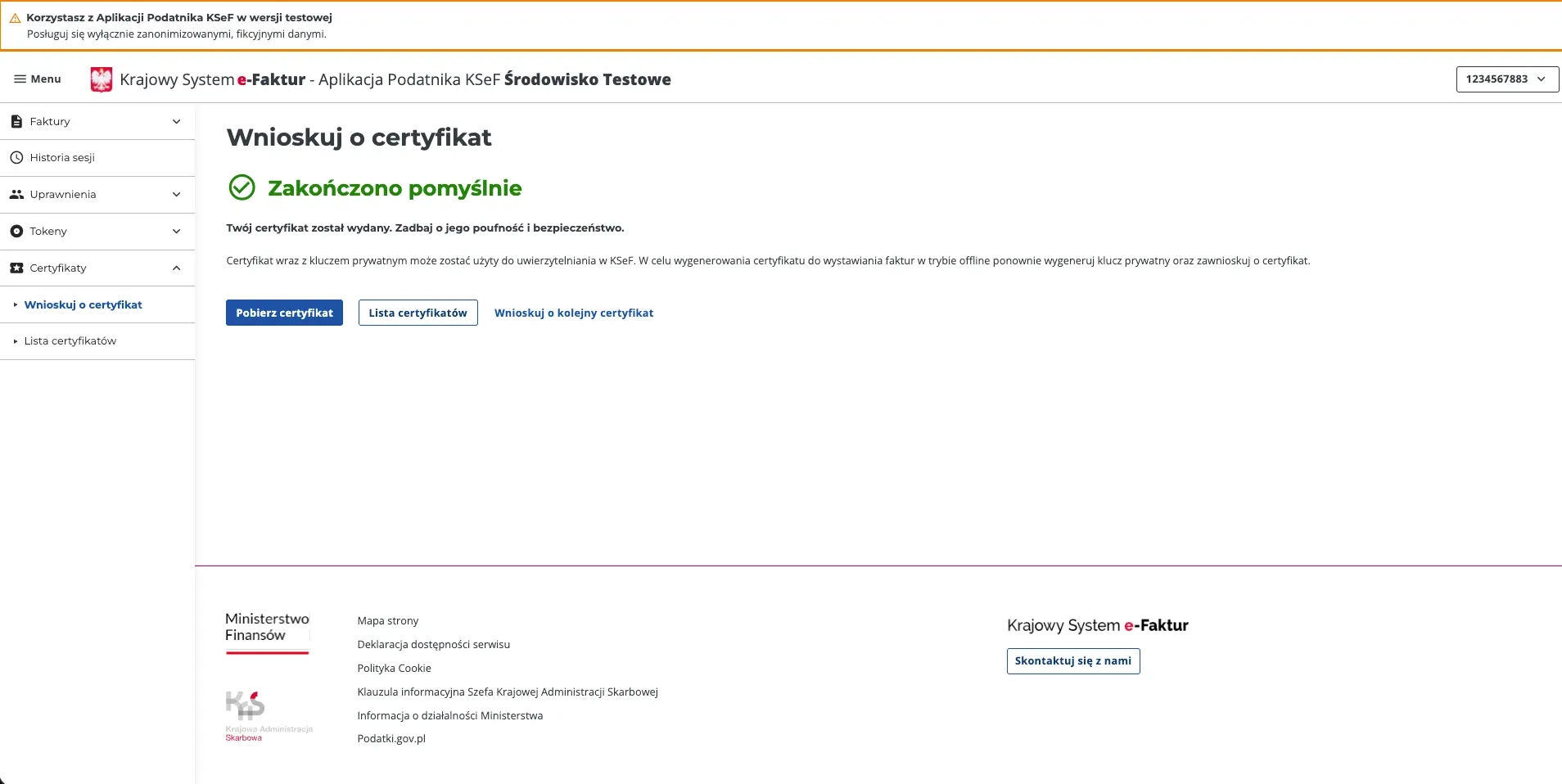
- Open the official KSeF test environment: Login using your Tax ID/NIP.
- Upload key + Certificate in Odoo
In Odoo, go to: Settings -> (Certificates and Keys area)
6.0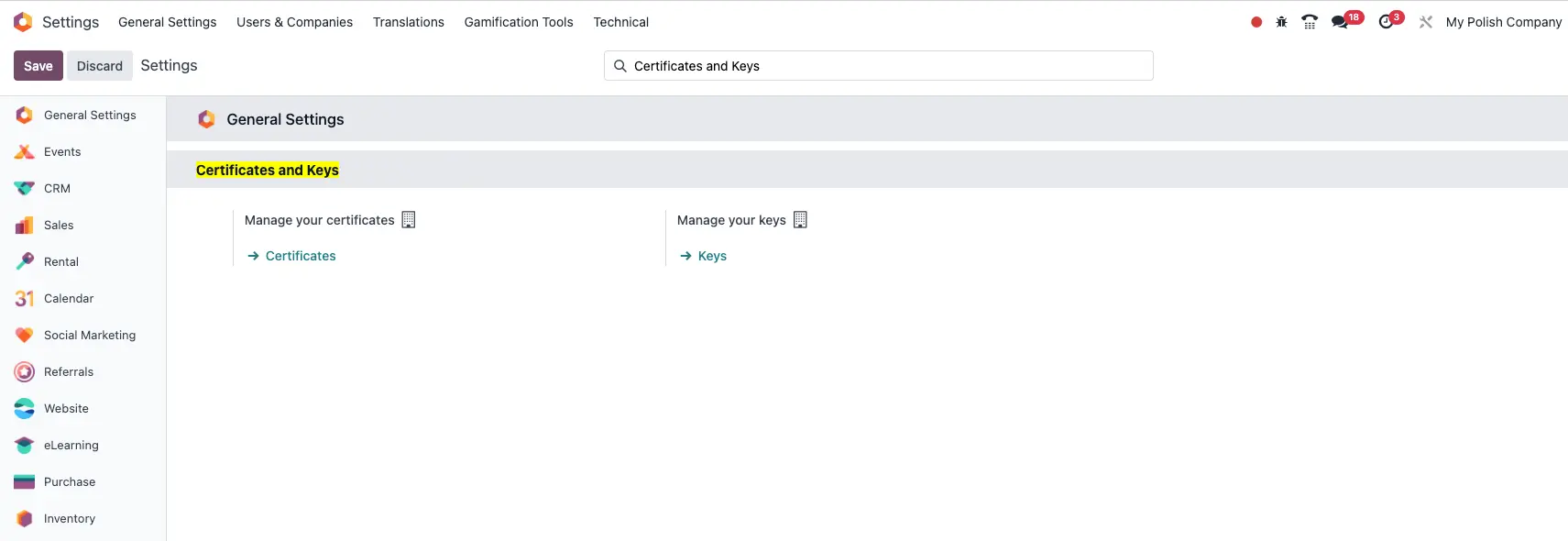
- Upload private key (.key) and enter the key password
6.1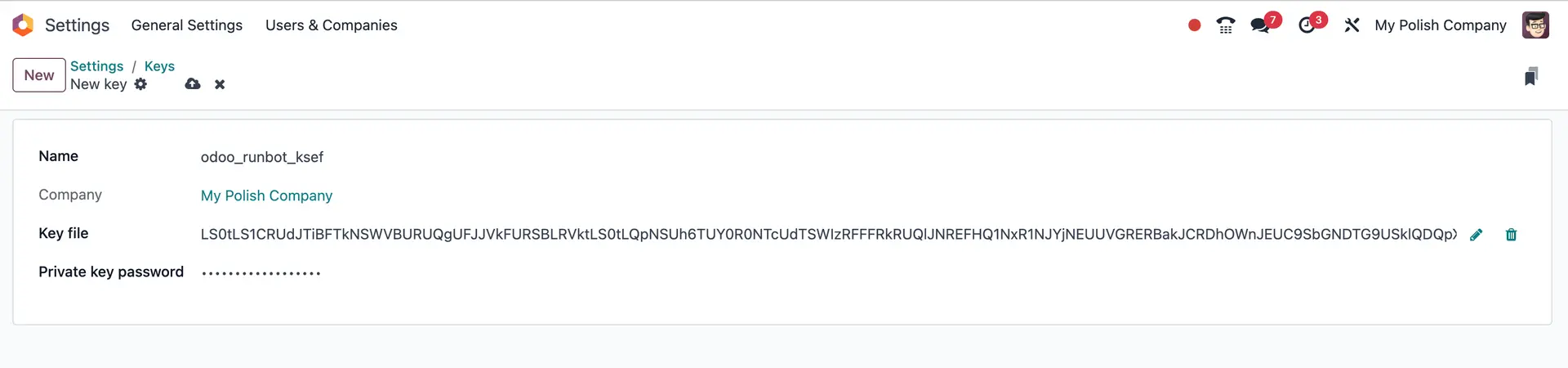
- Upload the certificate (.crt) and link it to that key
6.2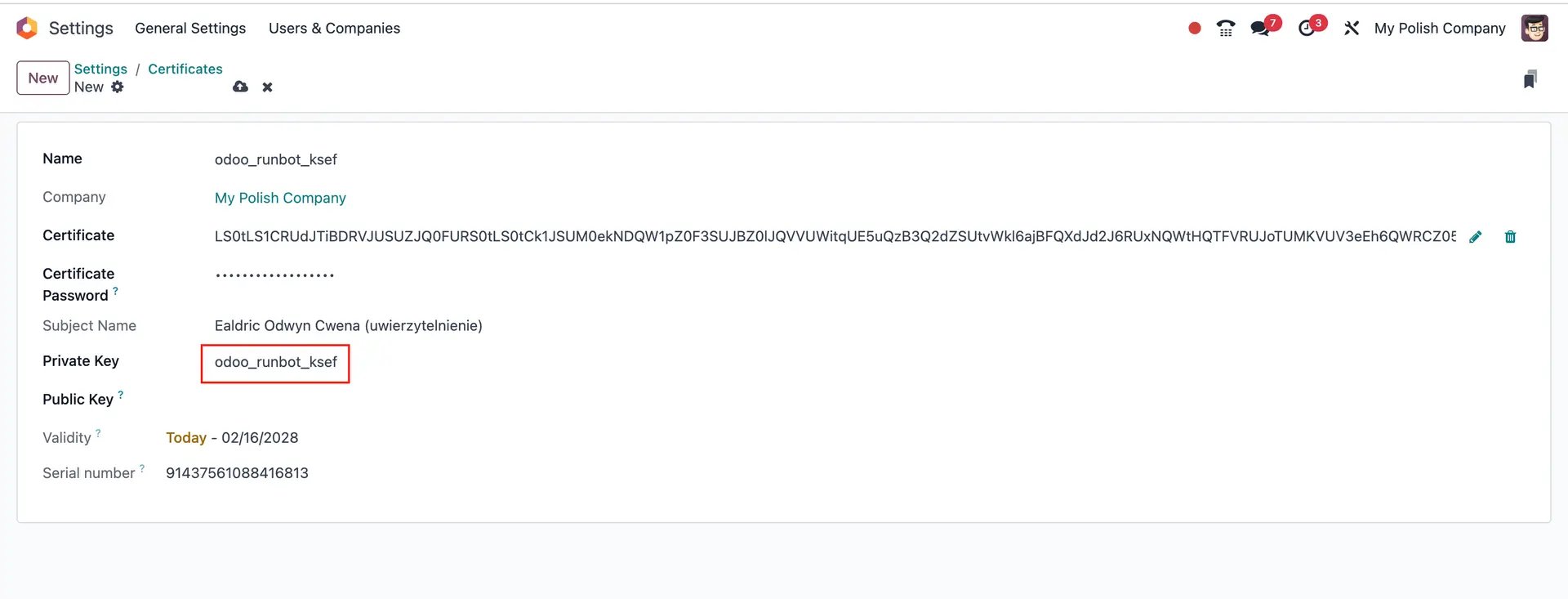
Note: Don't pay attention to Subject Name, it's mock data.
- Upload private key (.key) and enter the key password
- Enable KSeF integration in Accounting settings
Go to: Settings -> Accounting -> Polish Localization - Enable “Allow KSeF integration”
- Select your KSeF certificate
- Save
7.0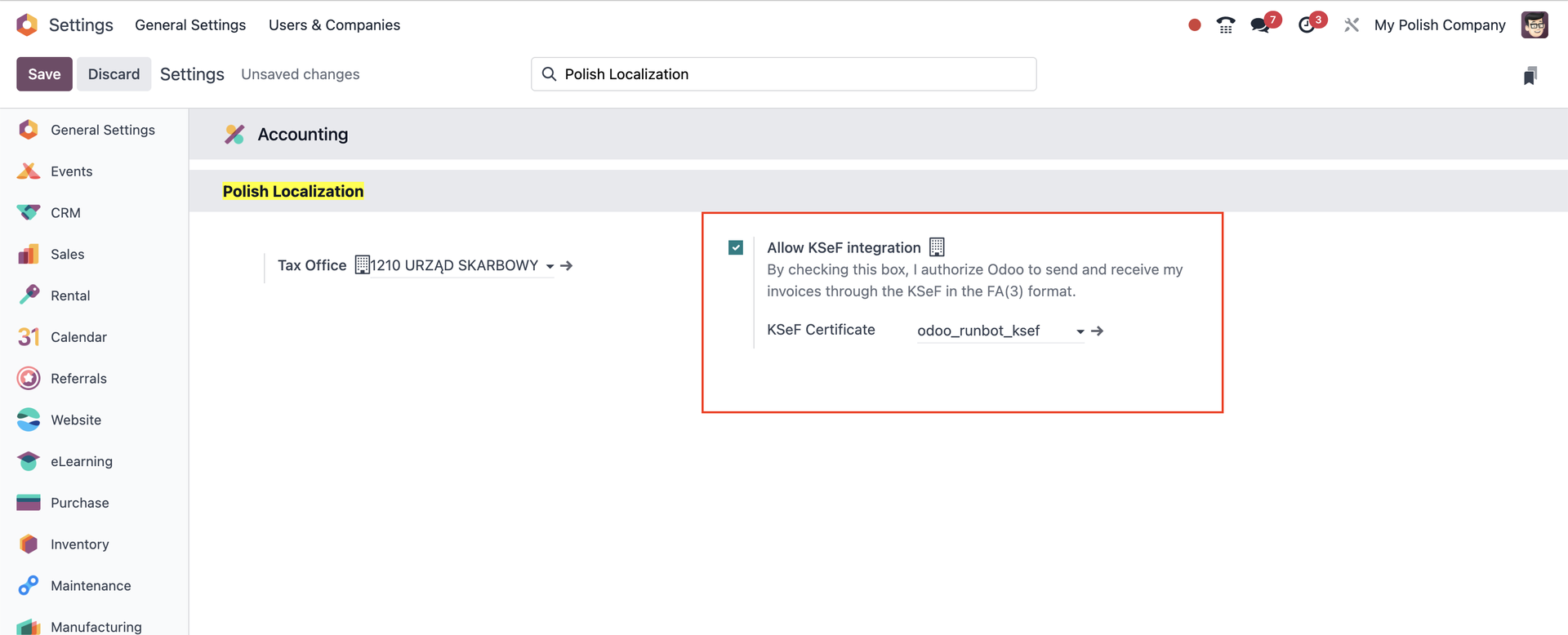
- Create and send a test invoice to KSeF
- Accounting -> Customers -> Invoices -> New
- Create invoice (customer, product line, taxes)
- Confirm invoice
- Click Send. In the “Print & Send” pop-up: Tick the option "by KSeF (e-Faktura)"
- Click Send to submit the invoice through KSeF
- Right after sending, the invoice may show a KSeF status like: Sent (In Progress)
- Check Sending status in Odoo
8.0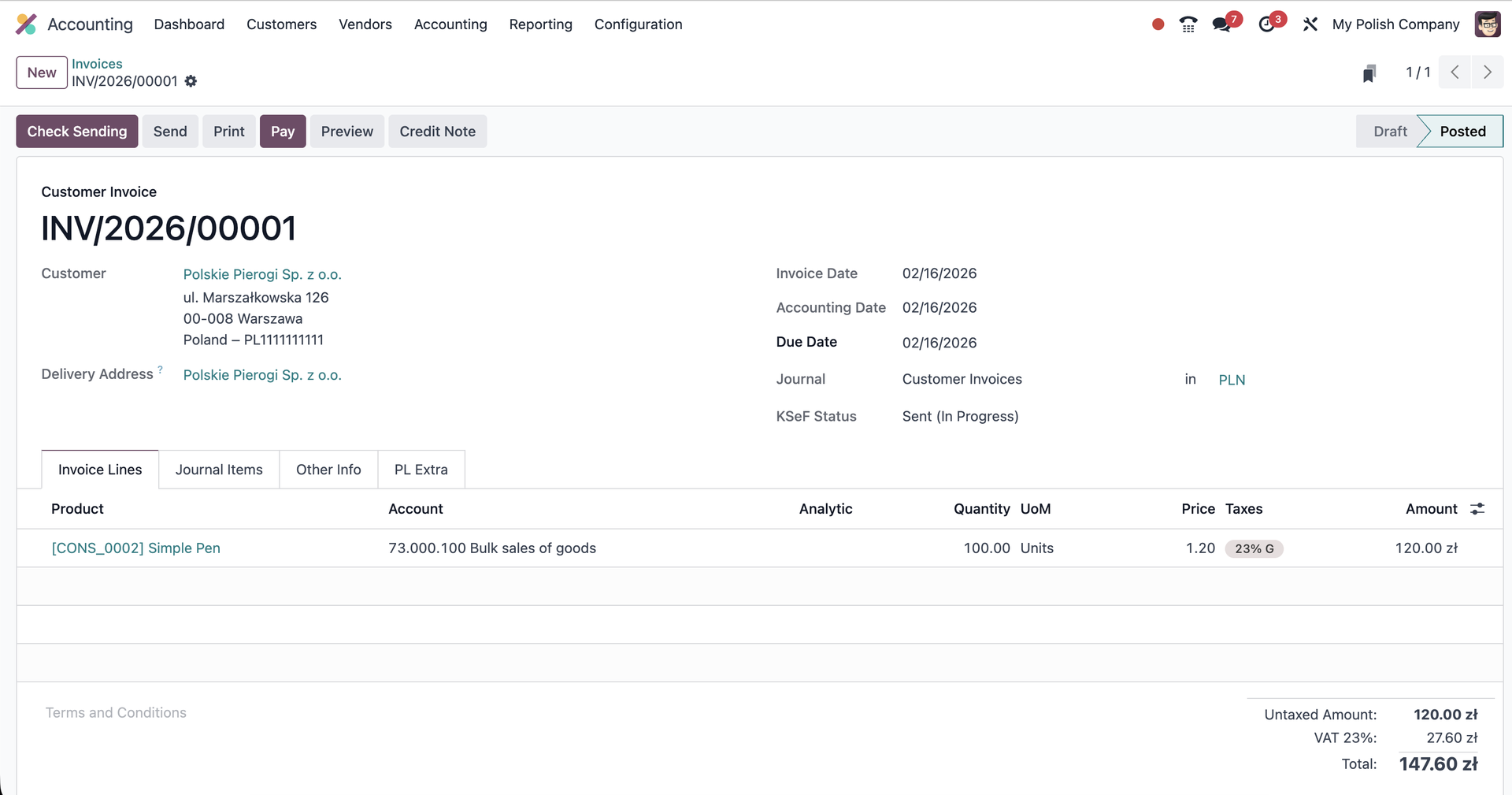
- Once the KSeF Status becomes: Accepted
- Click Download UPO to retrieve the official confirmation from KSeF
8.1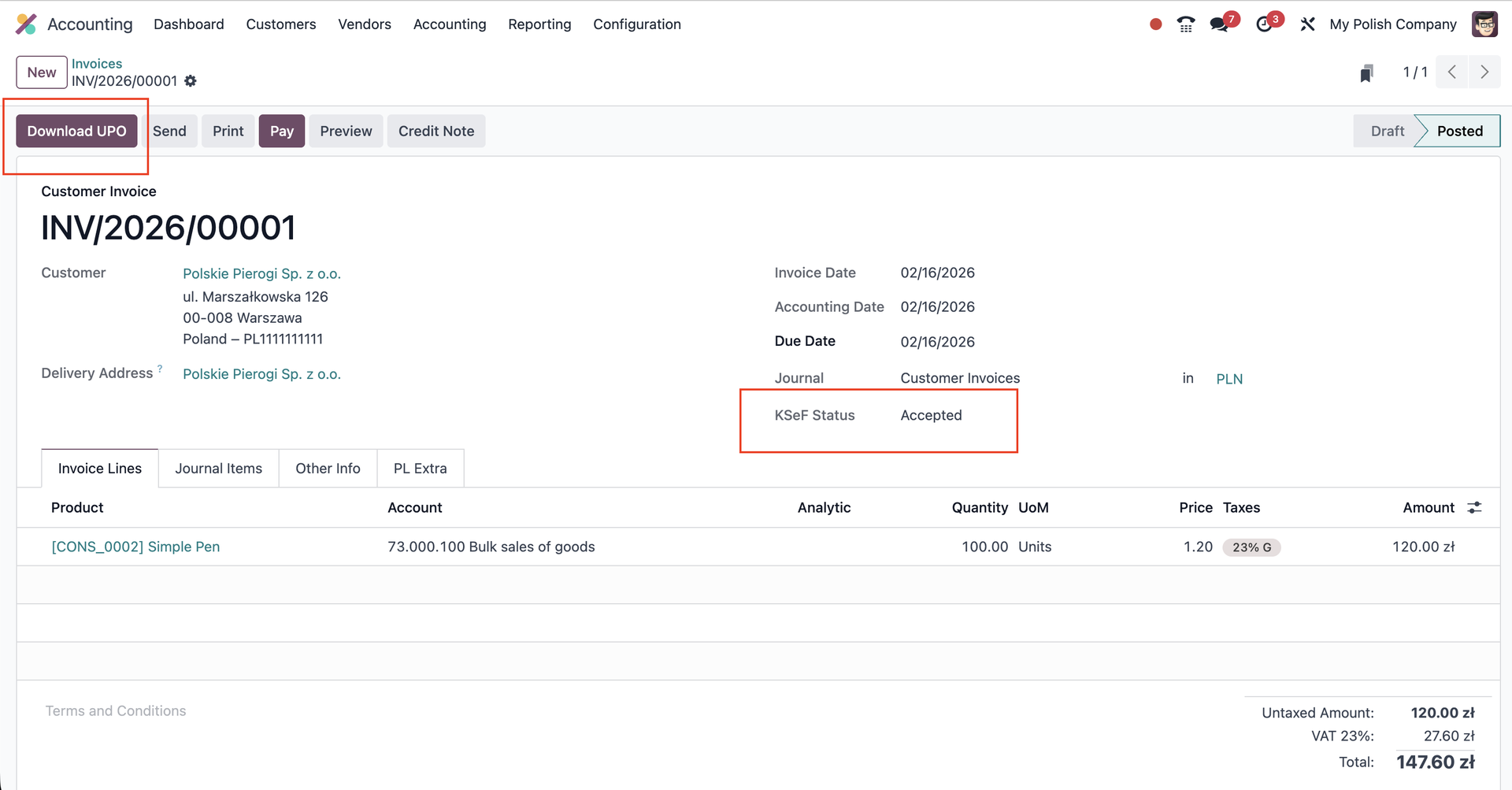
8.2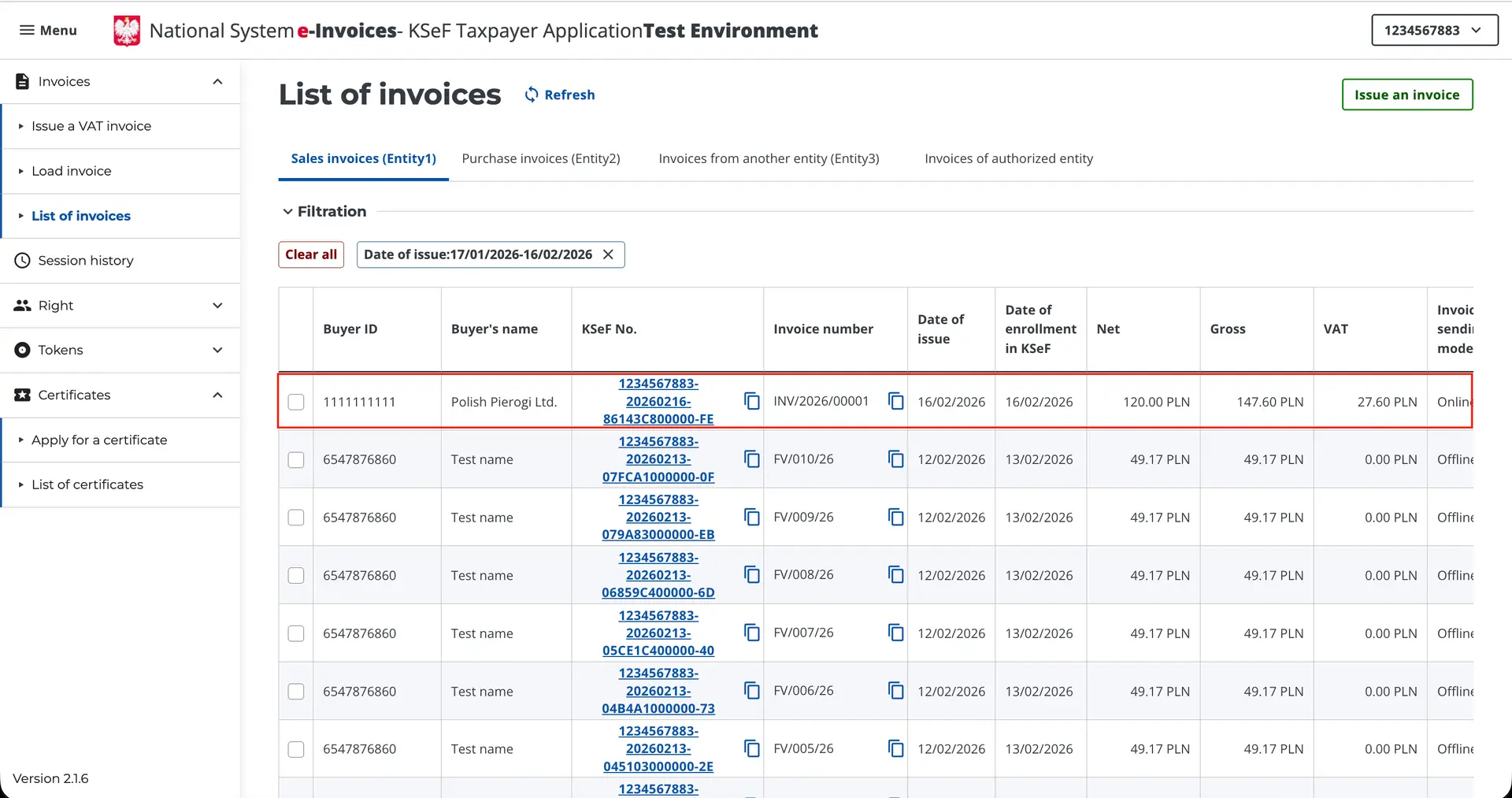
Outro
That’s it - what used to feel like a “scary government integration project” is now just another operational procedure inside Odoo.
Instead of jumping between external tools, portals, exports, and manual confirmations, your accounting team can work where they already live every day: on the invoice.
Create it, post it, send it by KSeF, check the status, download the UPO - and move on.
At ERPGO, we build and implement solutions with the same mindset:
Take something that looks complex on paper and turn it into a smooth process in Odoo.
If you want to prepare for KSeF rollout (or any other operational workflow), we can help you turn it into a clean procedure, not a stressful project.
Bonus tip
Downloading invoices from KSeF into Odoo is still evolving, so if you want to follow progress and test new improvements early, you have two reliable places to watch:
- Runbot (feature branches and experiments):
https://runbot.odoo.com/runbot/rd-1?search=18.0-ksef-download-invoice-abmn - Odoo GitHub (open pull requests related to KSeF): https://github.com/odoo/odoo/pulls?q=is%3Apr+is%3Aopen+ksef